How I Access My Bare-Metal Homelab When I Touch Grass
A few months back, I had a crucial decision to make: turn my homelab into a bare-metal Talos cluster, or allocate memory to Proxmox in a constrained environment. The only rational thing holding me back was a VM that was running Tailscale.
From that day onwards, since I went bare-metal, I had no access to my homelab when I was outside. I have fairly modest uptime (apart from some electricity outages), but being locked out did not sit right with me. The homelab being pre-production did not mean I could just let it stay broken. Therefore, here we are. This blog is all about what I did to access my homelab when I touch grass.

Figuring out the right tool
Simply said, I could not independently run a VPN outside the cluster. There was no Proxmox host, utility VM, Raspberry Pi, or separate server. All the devices I had handy were part of my bedroom lab, configured with Talos.
A VPN pod inside Kubernetes would not work either, as it depends on a chain above the operating system with higher failure domains:
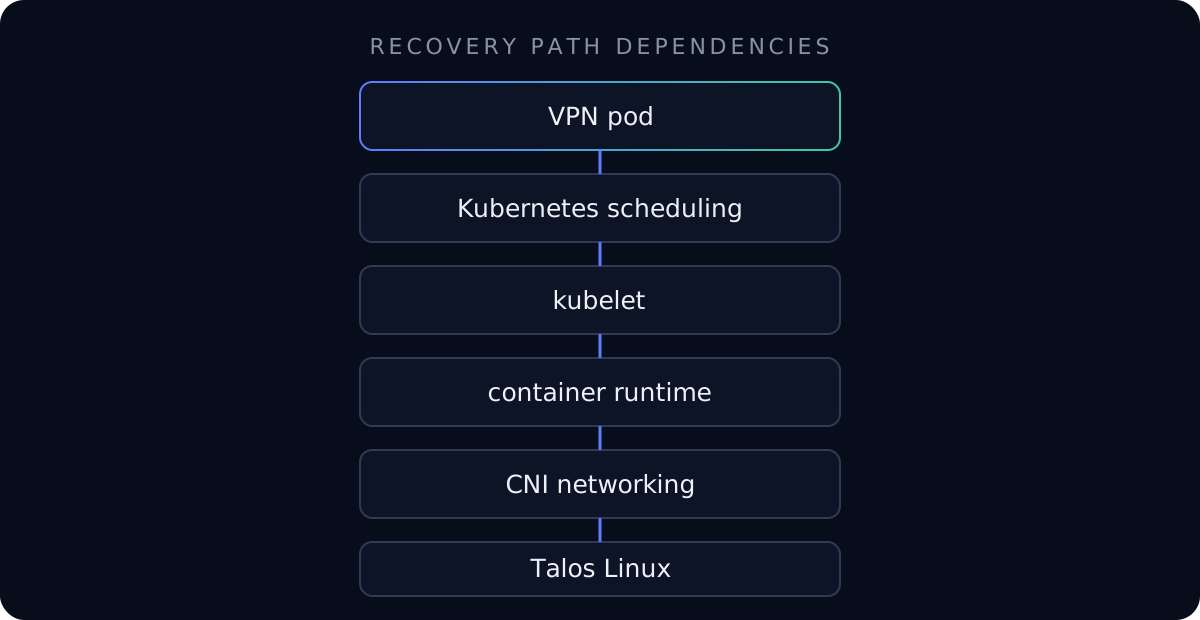
Therefore, I needed a tool that would still work when Kubernetes was unhealthy, given that talosctl worked completely fine.
I could have used Cloudflare Tunnel or built the missing coordination around plain WireGuard, but I did not want a public ingress path into these management APIs or the hassle of managing endpoint discovery, keys, and relays myself. That narrowed down the hit list by a margin.
Let’s welcome NetBird to the picture.
What is NetBird and why was it chosen?
I got lazy here, so here is the short version from the official site: NetBird makes it simpler to build secure private networks. It uses WireGuard for peer encryption, then adds management, signaling, NAT traversal, relaying, groups, and policy distribution.
Why NetBird?
Because it matched the actual boundary:
- a supported Talos system extension existed in the v1.12 extension catalog;
- a headless node could enroll with a one-off setup key;
- the workstation and nodes could discover each other through CGNAT;
- direct peer-to-peer WireGuard was preferred, with relay available as a fallback;
- groups and unidirectional policies could expose only TCP 50000 and 6443;
- no new always-on LAN machine was required.
What does the bird do?
Firstly, let’s understand some key concepts.
A peer is a machine enrolled in the NetBird network. In this design, the workstation and each physical Talos node are peers.
The underlay is the ordinary network that can carry packets towards the internet: home Ethernet or Wi-Fi, a hotspot, an ISP, NAT devices, and the public internet.
The overlay is the private logical network built over that underlay. NetBird assigns each peer a private overlay address and creates the wt0 WireGuard interface on Linux.
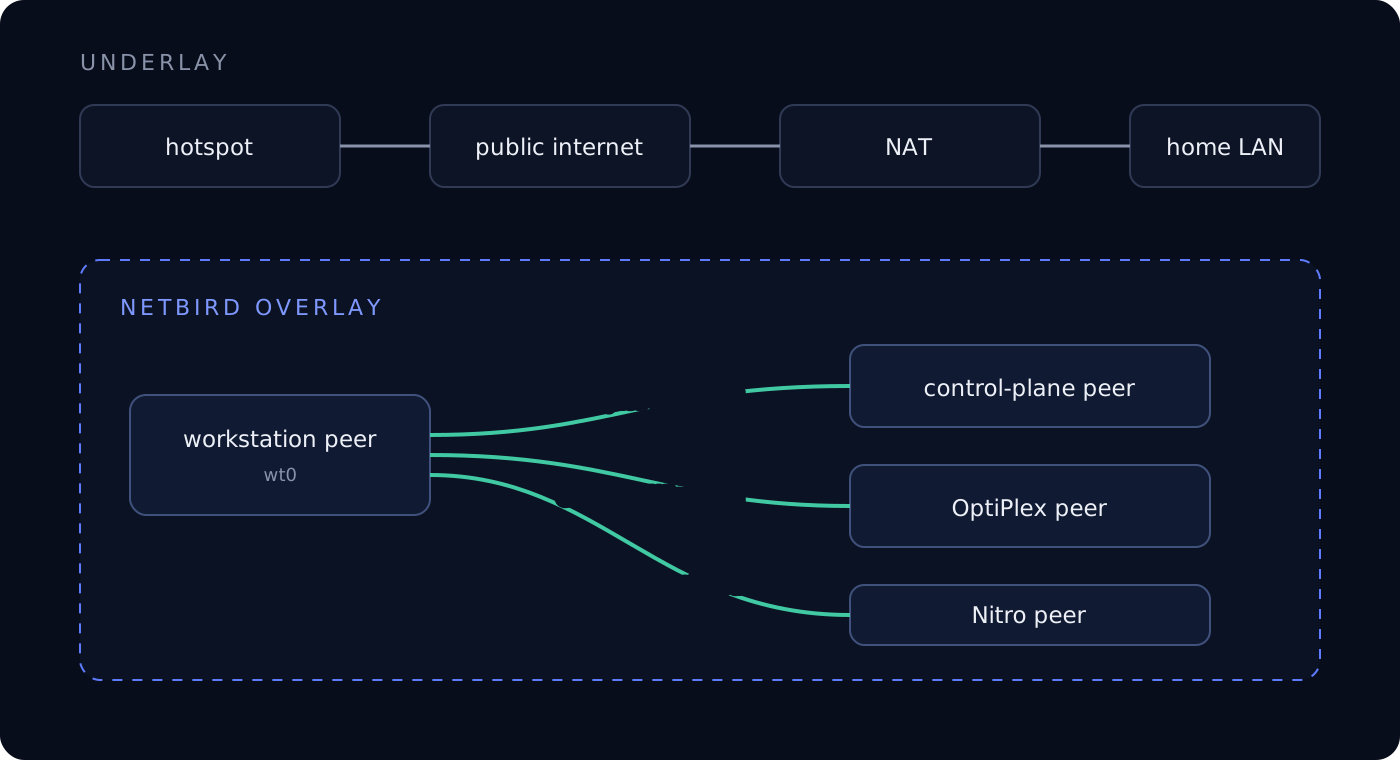
Note that the overlay does not replace the LAN. Each node remains reachable at its physical 192.168.1.x address at home and gains a separate NetBird address on wt0.
NetBird has several roles. They should not be collapsed into “the VPN server.”
| Component | Responsibility | Does application traffic normally pass through it? |
|---|---|---|
| management | Authenticates peers, assigns overlay addresses, stores public peer state, and distributes policies and network maps | No |
| signal | Helps peers exchange connection candidates | No |
| relay | Carries encrypted peer traffic when a direct path cannot be established | Only when needed |
| client | Owns the peer’s WireGuard key, creates wt0, applies routes and policies, and establishes peer connections |
Yes, at each endpoint |
The preferred data path is peer to peer. The management and signal services coordinate that connection. They are not reverse proxies terminating Talos or Kubernetes traffic. If a relay is needed, it carries ciphertext, and the WireGuard endpoints remain the peers.
Three custom peer groups were created in NetBird, not just for namespacing:
devata-admins        -> my workstation       -> approved outbound traffic to the homelab
devata-control-plane -> control-plane node   -> Talos TCP 50000 and Kubernetes TCP 6443
devata-workers       -> both worker nodes    -> Talos TCP 50000
The built-in All group was also relevant while replacing NetBird’s default full-mesh policy with explicit rules.
Policies were created unidirectionally on purpose. A worker does not gain permission to initiate arbitrary traffic to the workstation.
Placing NetBird inside Talos correctly
NetBird was added as a system extension, not through simple package installation as you would do in Ubuntu.
I started my homelab about a year ago, and I had not upgraded Talos for a while. The version I was on did not include NetBird in its extension catalog, so I had to do the due diligence as a prerequisite: upgrade from Talos v1.11.5 to v1.12.11 and boot an image that included siderolabs/netbird.
Previously, when installing applications, things were pretty simple: create an Argo CD manifest, pin it, watch it reconcile, and the work was pretty much done most of the time.
As mentioned above, this was not an application. It was a system extension, with two separate pieces:
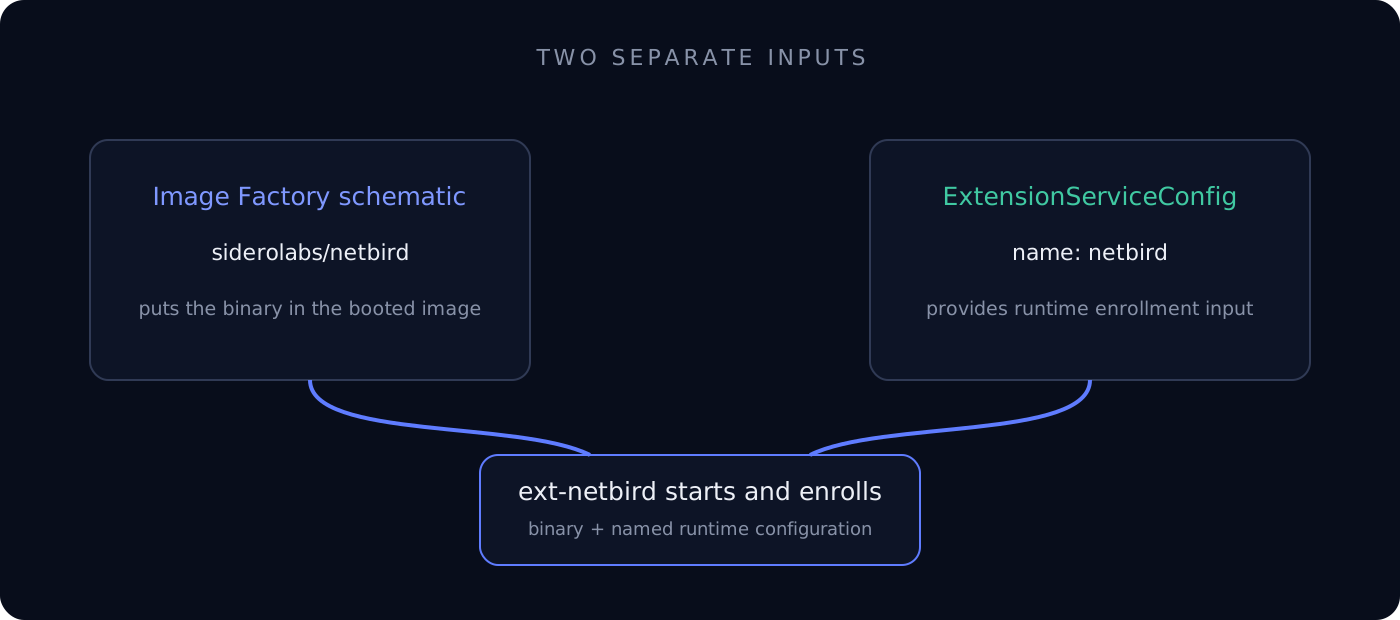
ExtensionServiceConfig provides the runtime input. Neither one replaces the other.The siderolabs/netbird Image Factory schematic unlocked the runtime pathway and was merged first. The secret-free ExtensionServiceConfig example shows the separate configuration document used to enroll the service.
Applying that document to the older v1.11.5 nodes had no effect yet because their booted images did not contain the NetBird extension. Once a v1.12.11 image containing the extension booted, Talos could discover the binary and its named configuration, start ext-netbird, and enroll the node.
We also need to understand that a Talos configuration can contain multiple YAML documents, which it did in my case. The main machine document, auxiliary storage documents, and ExtensionServiceConfig all formed part of the complete configuration. Applying an incomplete bundle could silently remove documents that were left out, so I reconstructed the full multi-document configuration and checked the dry-run for unintended removals before applying it.
Post-installation and testing off-LAN access
When I thought that the installation was finished, things started getting tricky. I had not covered every corner that I should have. This section will be covered in Part 2 of this blog, which I will work on this weekend. But I will share one small observation that I had not noticed previously.
The concepts of kubeconfig and contexts were not particularly new to me. I had worked with them during my time at Meshery and with mesheryctl. But, being used to Tailscale previously, this error message caught me off guard:
Unable to connect to the server: dial tcp 192.168.1.8:6443: connect: no route to host
Meanwhile, talosctl was working perfectly fine.
NetBird was healthy. kubectl was simply dialing the address stored in my active kubeconfig context, and that context still pointed to the control plane’s home LAN address, 192.168.1.8:6443. On another network, that address was not my homelab and had no route through wt0. talosctl worked because I had explicitly pointed it at the node’s NetBird address. The tunnel does not rewrite a client’s configuration or magically choose the right endpoint for it.
Final notes
So, apart from the bugs that we will figure out in the next part of this blog, NetBird is now working perfectly fine for my setup. If you are working with a bare-metal Talos configuration, you could seriously give this a shot.
If you are not a bare-metal geek like me, you could refer to my earlier blog, How I Access My Talos Kubernetes Homelab From Anywhere Using Tailscale, where I used the Proxmox host as a Tailscale subnet router for the homelab LAN.